Themes
Themes are their own item in the admin sidebar, under Themes. One theme is active. Customize on that theme sets colors, fonts, and typography. The screenshot is the Agency panel.
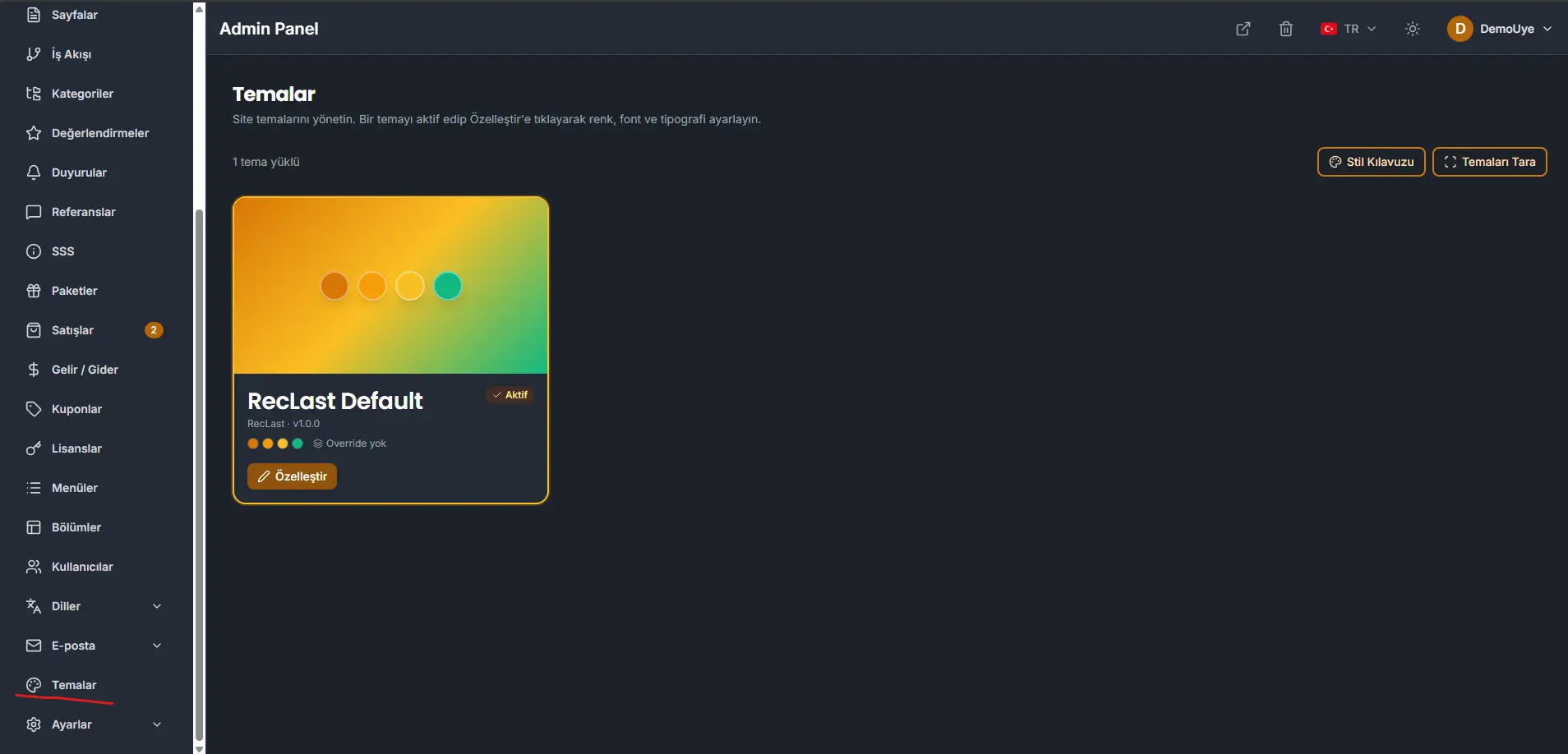
The card marked Active is the theme the public site uses. In the screenshot that is RecLast Default, version 1.0.0, with no overrides yet.
Browse themes adds a theme the panel can load. Style guide opens the style guide for the themes. How to build a theme is written for developers in the documentation inside the theme folder.
Customize
Customize opens four tabs: Colors, Fonts, Typography, and Overrides.
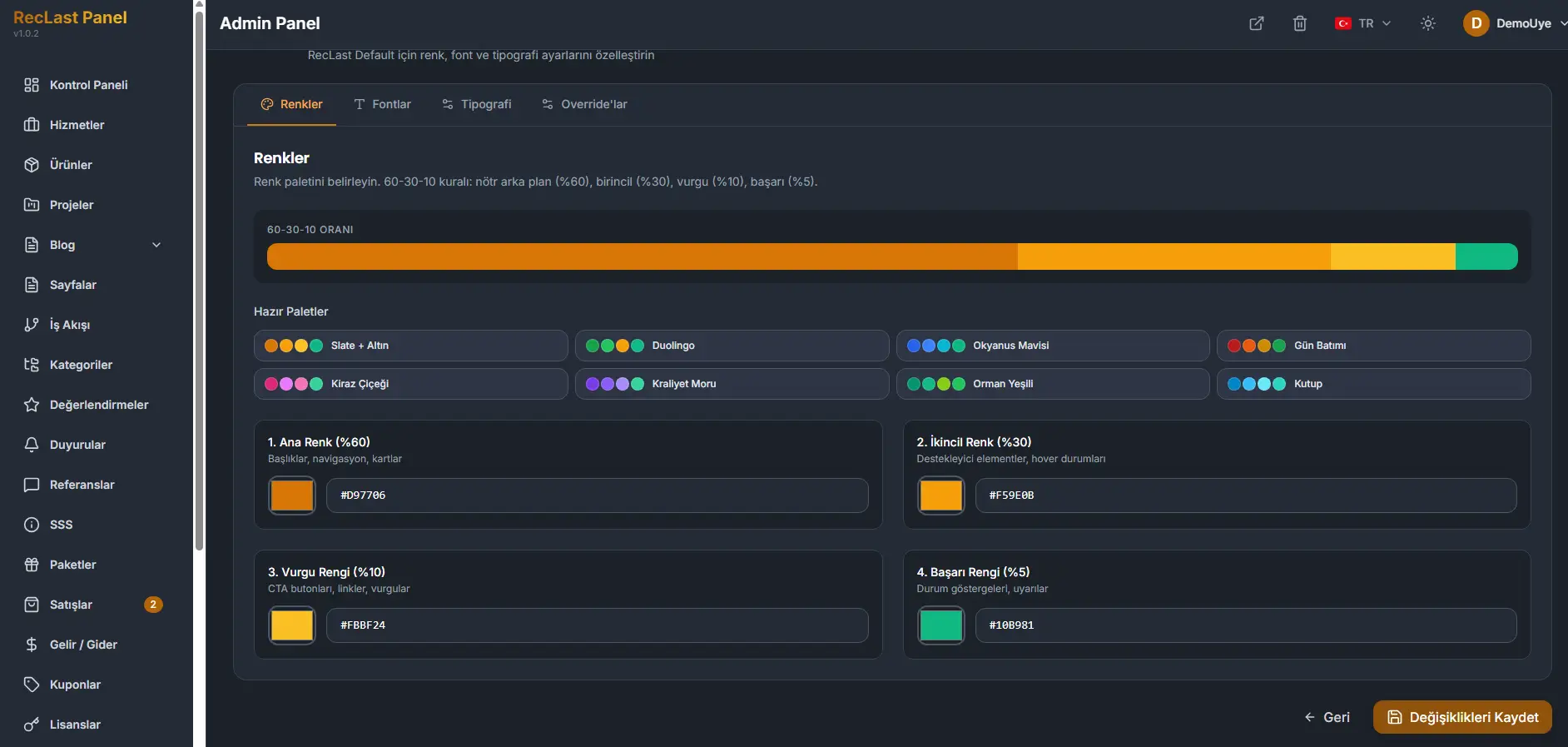
Colors sets the palette. The bar on that tab is the 60-30-10 guide. The four roles under it are:
- Primary (60%). Headings, navigation, and cards.
- Secondary (30%). Supporting elements and hover states.
- Accent (10%). Call-to-action buttons, links, and warnings.
- Success (5%). Status indicators and alerts.
Ready-made palettes sit on the same tab. Pick one, or set the four colors yourself. Fonts and Typography set the type. Overrides is where a value replaces the theme default. Save changes writes the editor. Back returns to the theme list.
Light and dark are both active. Colors, fonts, typography, and overrides need to be checked on the public site in both before the theme is treated as finished.