Languages
Languages are their own item in the admin sidebar, under Languages. The screen manages the languages the system uses. The screenshot is the Agency panel.
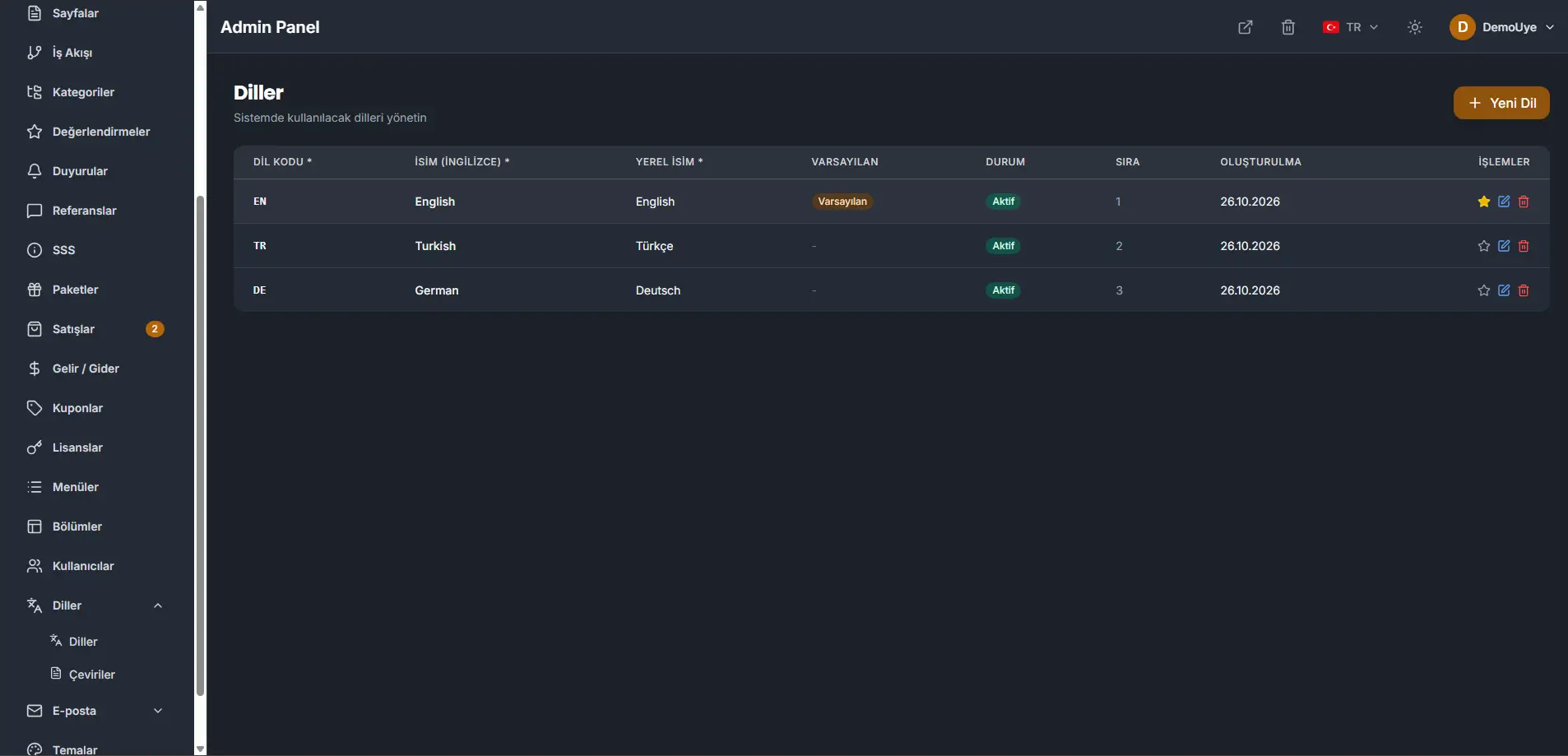
New language adds a language. Each row can be edited or deleted. The star on a row makes that language the default. Status shows whether the language is active. Order is the sequence of the languages.
The table in the screenshot has three active languages. English is the default. Turkish and German are the other two.
The default language is the one that owns the slugs inside the site. Changing it also changes the language tab that opens first on every screen with a language tab: blog, products, settings, and the other screens that edit text per language.
Keep three languages, with English as the default. The screenshot is that set: English, Turkish, and German.
Translations
Translations are under Languages → Translations. This screen holds the wording the public site reads from a key. Change a line here, or add one that the site does not have yet. The screenshot is the Agency panel.
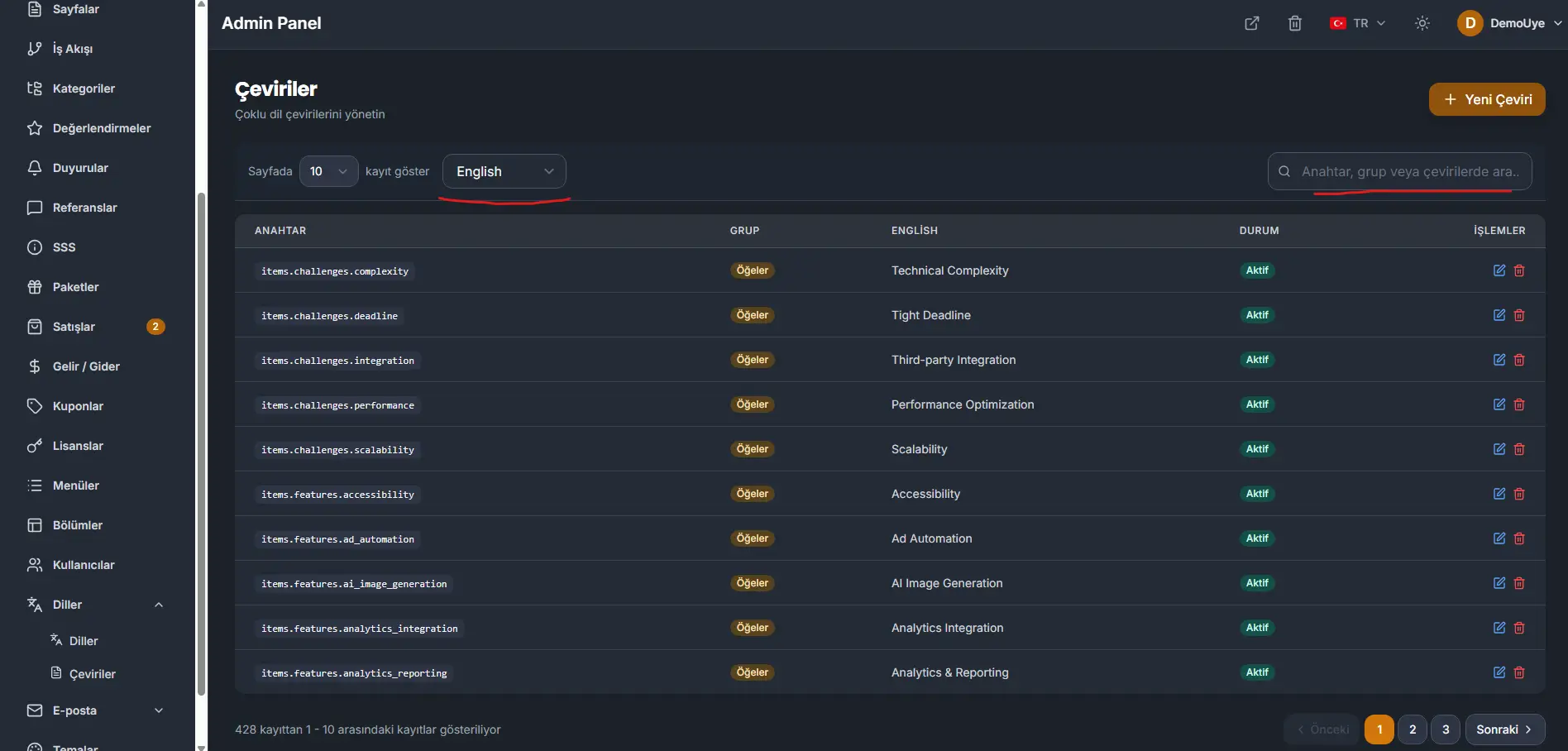
The language switcher chooses which language column the list shows. Search matches a key, a group, or the translation text. New translation adds a row. Each row can be edited or deleted.
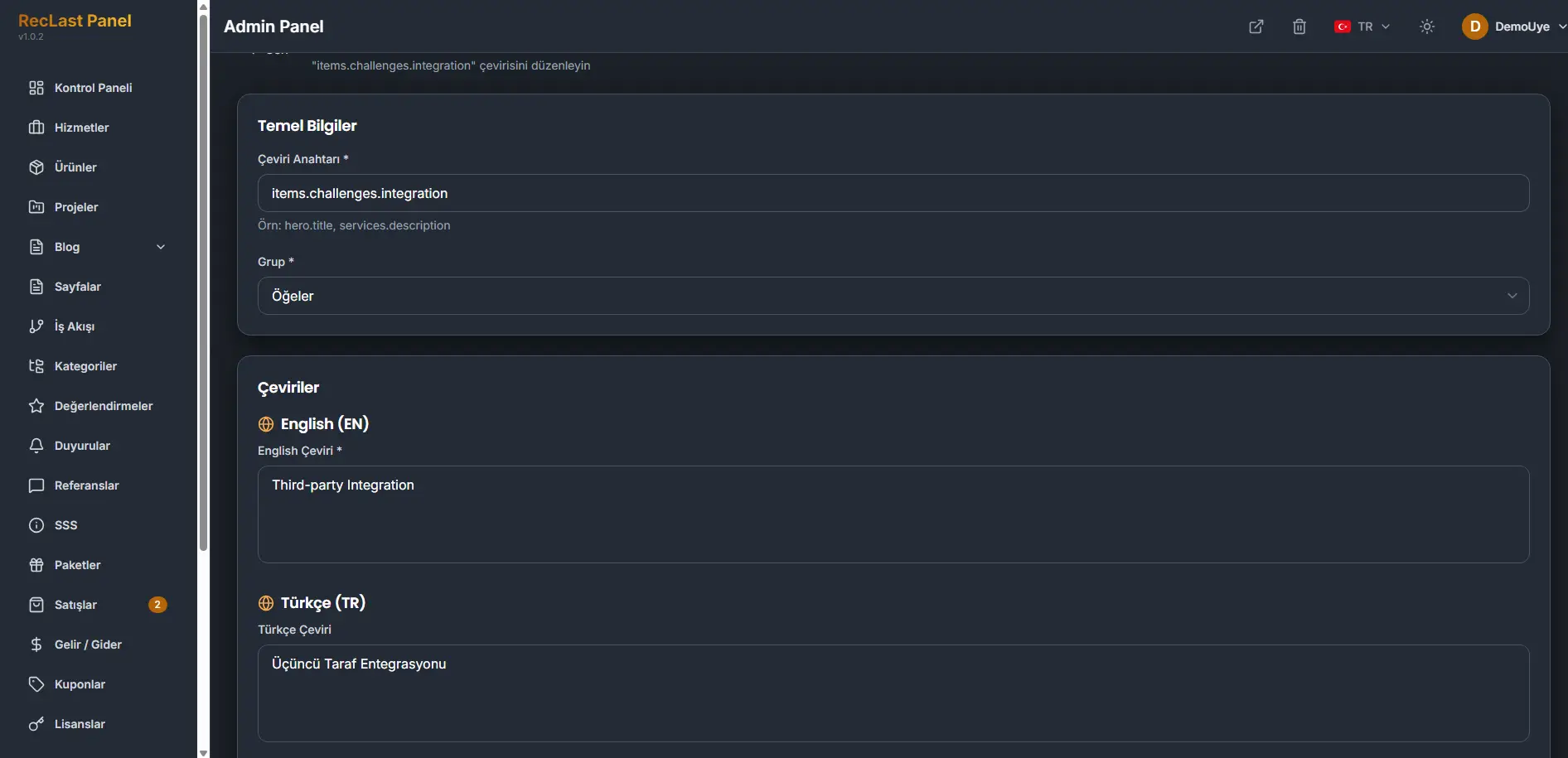
Translation key and Group are required. The example key on the screen is items.challenges.integration, in the group Items. Under that, each language has its own field. Fill the languages you publish.
A newly added key may not show on the site the moment you save it. For
performance and security, activate it under
storage/app/translation-discovery/activekeys. Sections pick up
their keys on their own. Some pages do not, and those keys are added on
this screen.
Changing a key that is already in the list is applied at once. That is the safer way to change a wording. Add a new key only when the line is not there yet.