Testimonials
Testimonials are their own item in the Agency admin sidebar, under Testimonials. The screen title is Testimonials, and the line under it is Manage client testimonials and comments.
A testimonial is added by hand. There is no import on this screen yet.
The list and the form use the same layout as Services. What changes is the fields. The screenshots on this page are that shared layout. The columns and fields below are the testimonial ones.
A later update can pull reviews from Google on its own. Until that update is in, add each testimonial here, including one that arrived from Google.
The list
New testimonial adds a testimonial. Show sets how many rows the page holds. The usual count is 10. Search filters the rows.
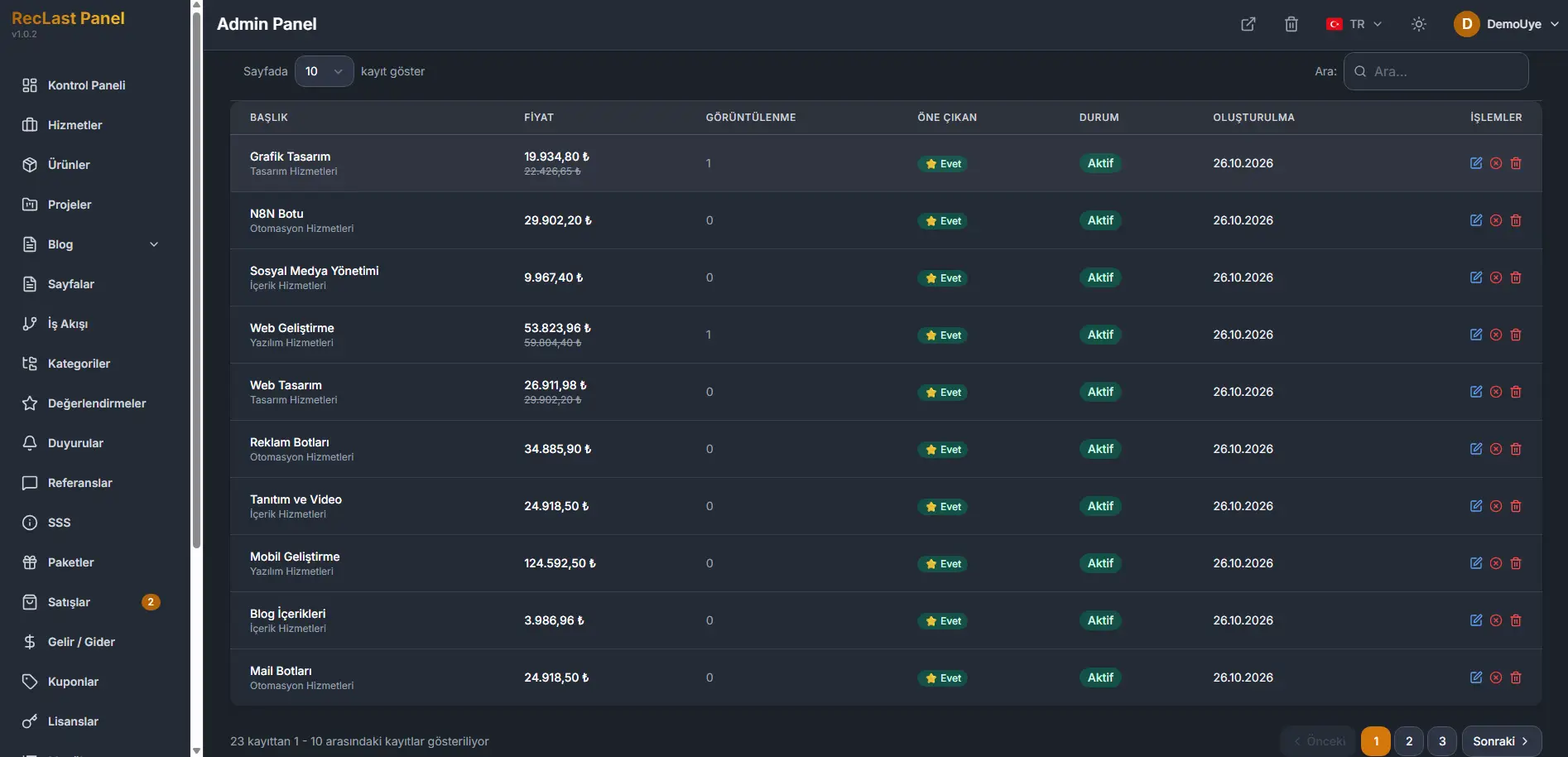
Each row shows:
- Client. The client’s name.
- Comment. The testimonial. A long comment is shortened on the row.
- Rating. The score, from 1 to 5.
- Project. The related project. A dash means no project is attached.
- Featured. A star when the testimonial is marked featured.
- Status. Active when the testimonial is in use.
- Actions. Edit opens the form. Delete removes the row.
The line under the table states which rows are on the page, out of the full count. Previous and Next move between pages. The numbers between them are the pages.
Create and edit
New testimonial opens an empty form. Edit on a row opens the same form with that testimonial filled in. The screen title for a new record is New testimonial, and the line under it is Add a new client testimonial.
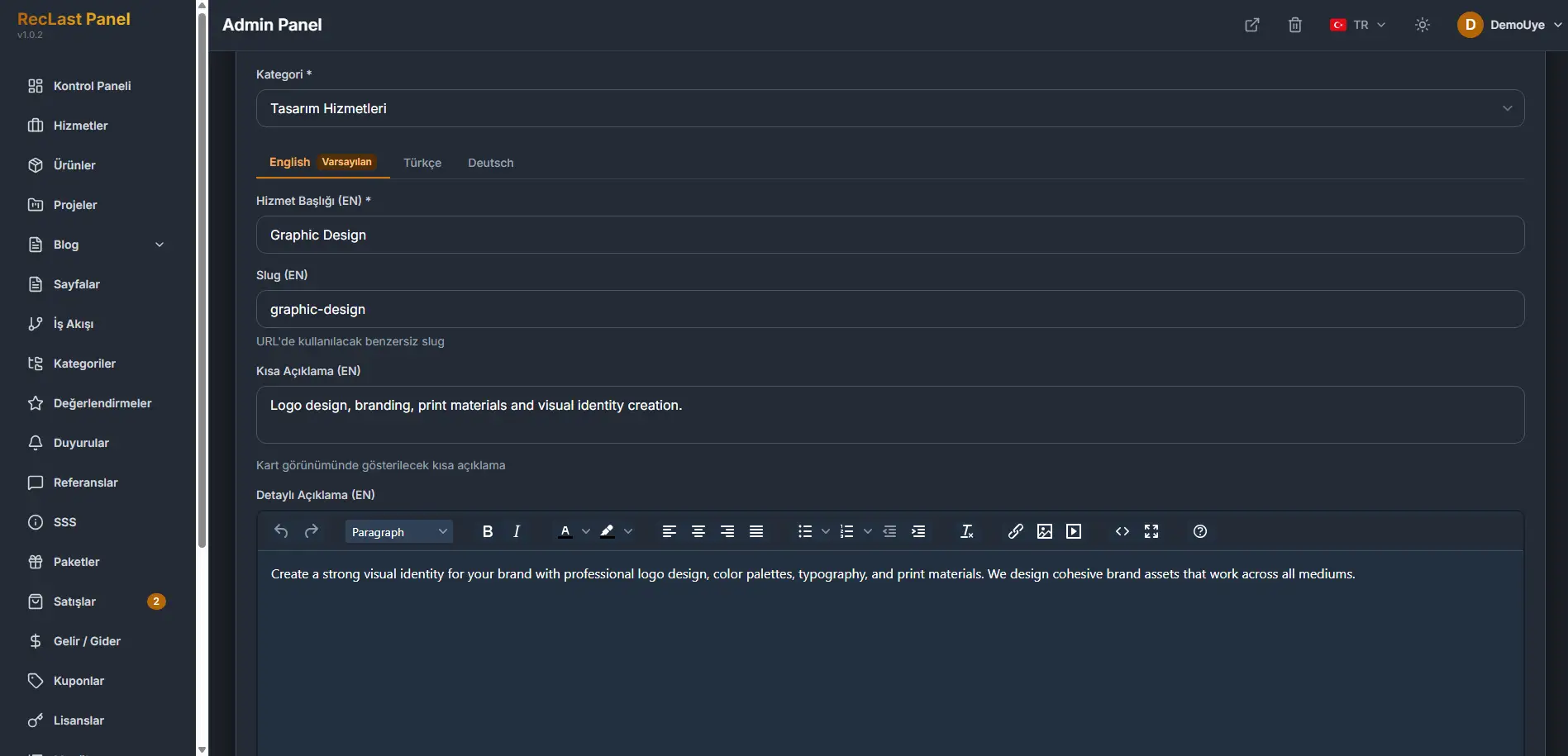
The screenshot is the top of the shared form. The fields below are the testimonial ones.
Client information
Client name is required.
Position is the client’s role. The placeholder is a role such as CEO or project manager.
Company is the client’s company.
Avatar URL is the address of the client’s profile photo.
Comment
Comment is required. It is the testimonial itself.
Rating (1–5) is required. The field shows the score out of 5.
Related project
Related project attaches a project from Projects. Leave it unset when the testimonial stands on its own. The list shows a dash for that row.
Settings
Order is the sequence. The form starts at 0. A smaller number is shown first.
Featured is the same mark the list shows with a star.
Active is the state the list shows for a testimonial that is in use.
Cancel leaves the form without writing it. Save writes the testimonial.