Services
Services are their own item in the Agency admin sidebar, under Services. The screen title is Services, and the line under it is Manage your services.
The list and the form on this page are the layout Agency uses for a record of this kind. Products, projects, and the sections that follow use the same screens. What changes is the fields. This page is the services version. The sample names in the screenshot are only there to show the columns.
The list
New service adds a service. Show sets how many rows the page holds. The screenshot uses 10. Search filters the rows.
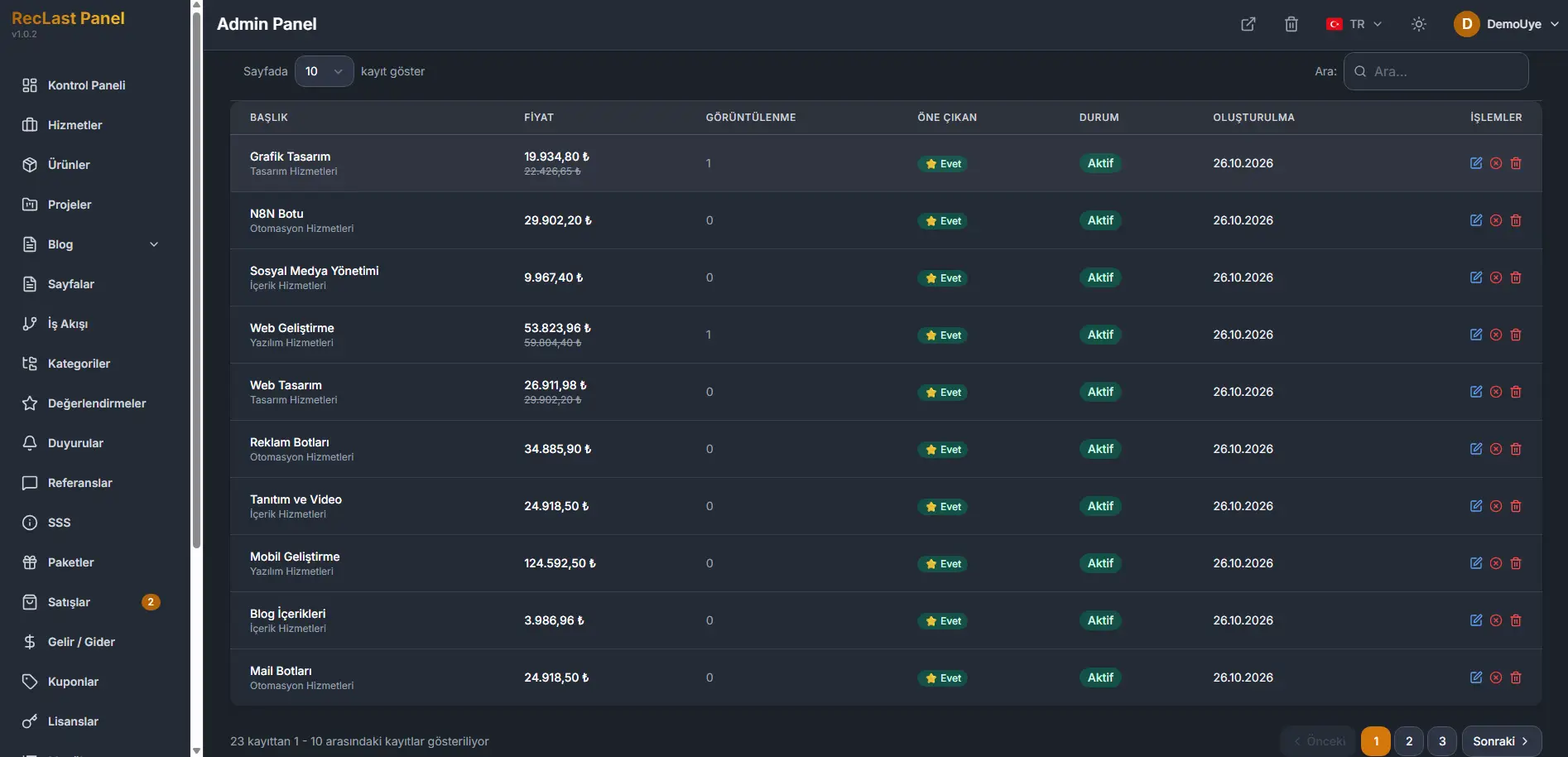
Each row shows:
- Title. The service name, with its category on the line under it.
- Price. The amount in effect. When a discounted price is set, the price before the discount is shown with it.
- Views. How many times the public page has been opened.
- Featured. A star and Yes when the service is marked featured.
- Status. Active when the service is in use.
- Created. The date the row was added.
- Actions. Edit opens the form. Delete removes the row.
The line under the table states which rows are on the page, out of the full count. Previous and Next move between pages. The numbers between them are the pages.
The amounts on the list follow the currency the panel is displaying. On the form, type the price in the default currency from Configuration. The panel converts that entry and stores every price in USD, so the catalog stays on one base.
Create and edit
New service opens an empty form. Edit on a row opens the same form with that service filled in. The screen title for a new record is New service, and the line under it is Create a new service.
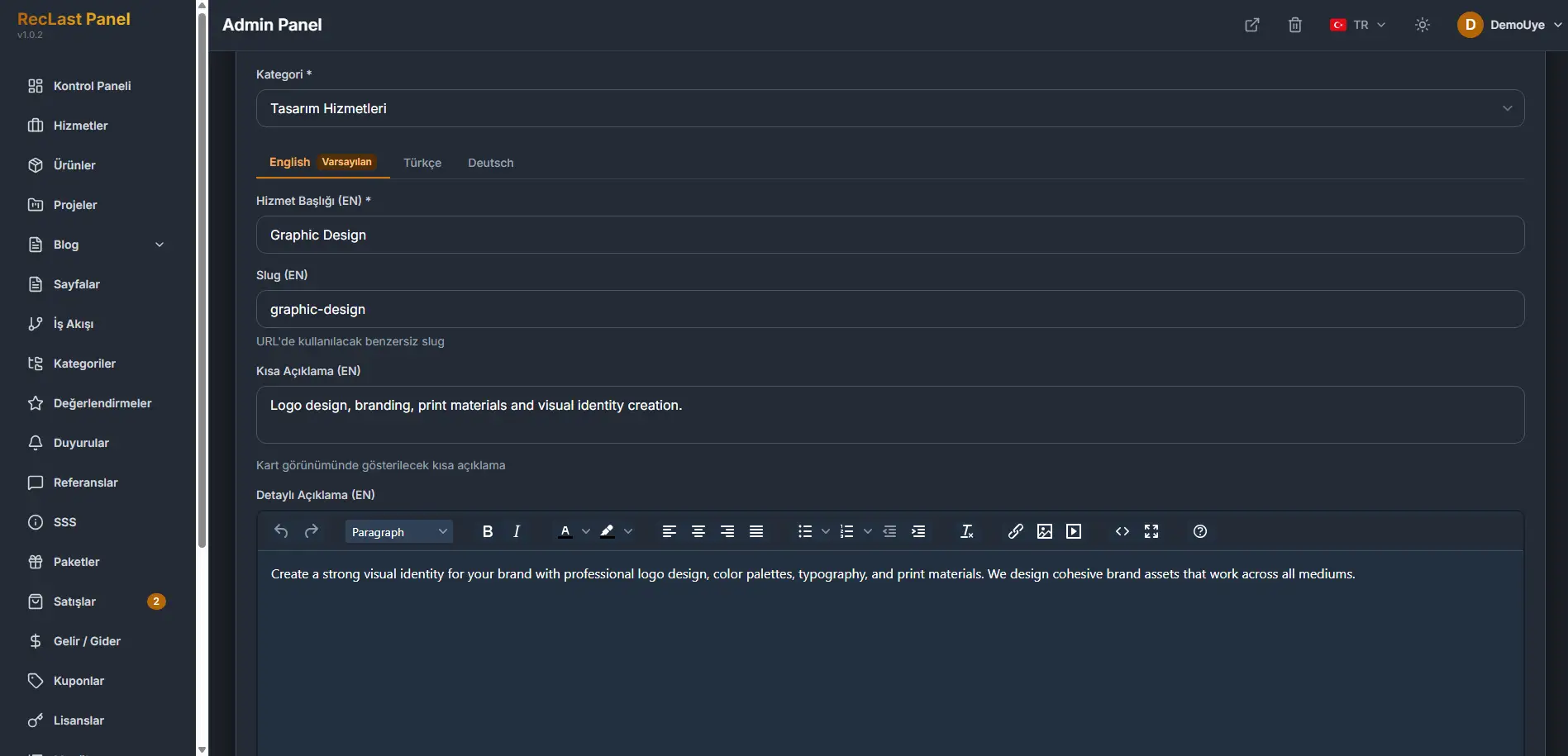
The screenshot is the top of the form. The sections below sit on the same page.
General information
Category is required. It is a category from the services group on Categories.
The language tabs come from Languages. The default language stays first, and the required fields on that tab have to be filled. This site currently has three languages, and English is the default, so English is the tab in front. Editing shows which language you are filling. Title, slug, short description, and detailed description belong to that language.
Service title is required.
Slug is the unique segment used in the URL.
Short description is the line shown on the card.
Detailed description is the longer text, written in the editor on the form.
Tags. Type a tag and press Enter or comma.
Detail view
Detail view is where the public design is set. Use the default template, or build the page from sections.
- Fields (default). The page uses the default template, built from the fields on this form.
- Sections. The page is built from sections.
- Hybrid (sections + content). The page keeps the sections and the written content together.
Pricing
Price and Discounted price are typed in the default currency from Configuration. The panel converts the entry and stores it in USD.
Pricing type is required. It describes how the price is charged. Fixed price is one choice. You can also describe the work as project-based or hourly.
Purchase type is required. The choices are Buy, Request a quote, Both, and No price.
Request a quote is the one to use. It sends the visitor to the quote page. Buy would send them to payment, and payment is still in test mode, so that path is not in live use. A later update may turn it on. Both shows the two buttons on the service page. No price is for a service that has no set amount.
Buy is present on the form, and it is not the path to use yet. Payment and invoicing stay off while the stack is in test mode. The same note is under Configuration.
The price field stays required when the price card is hidden on the public page. The field is there so the amount is not left empty by mistake.
External links
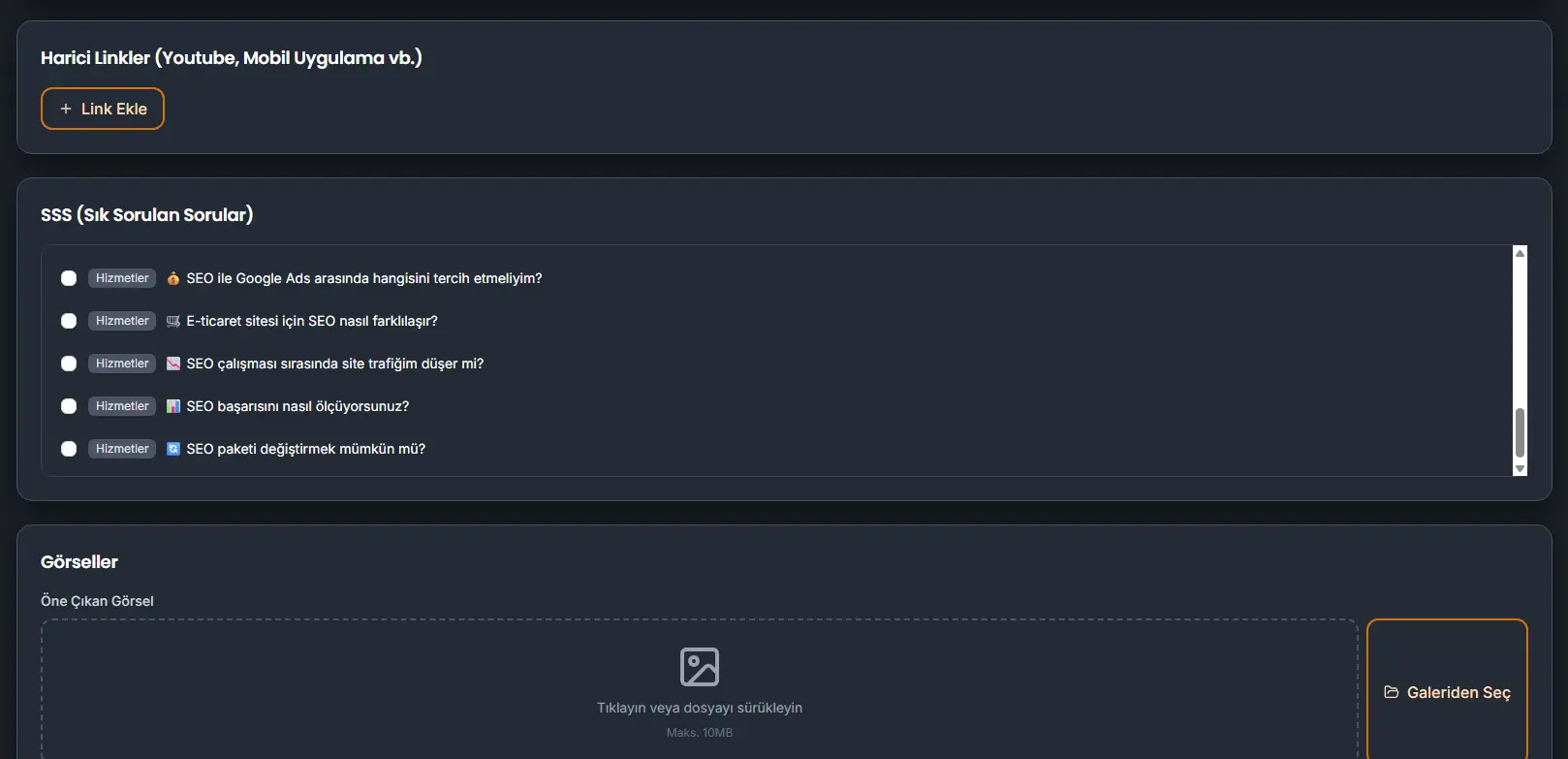
Links that live outside the site, such as a YouTube video or a mobile app. Add link inserts one.
FAQ
Questions already stored on FAQ. A general question is offered on a service and on a product. A service question is offered here. Each row has a checkbox, the group, and the question. The ones you select are shown on this service.
Images
Featured image is one image for the service. Click the area, or drag a file onto it. Choose from gallery uses an image that is already stored. The limit is 10 MB.
Gallery images are the extra images. More than one can be selected. The same limit applies to each file.
Features
Add feature inserts a feature of the service.
Projects
Projects chooses work to show on this service page. The search starts after two characters. The same link is made from a project, under Provided services on Projects.
Technologies
Add technology inserts a technology used by the service.
Other settings
Delivery time (days) is how long the service takes. Enter it as the real number of days. The public page uses that figure.
Icon (Lucide) names the icon.
Order is the sequence. The form starts at 0.
Featured is the same mark the list shows with a star.
Status is required. Active is the state the list shows for a service that is in use.
Internal service is the other status that matters. Set it when the service should be offered on a product. Only a service with that status appears under Included services on Products. An active service stays on the public service list and does not appear there.
A product cannot offer a service until that service’s status is Internal service. Active is not enough for that list.
Cancel leaves the form without writing it. Save writes the service.