Packages
Packages are their own item in the Agency admin sidebar, under Packages. The screen title is Packages, and the line under it is Manage packages and pricing.
A package is a selection of services and products that are already in the panel. The choices on this form are what the package is.
The list and the form use the same layout as Services. What changes is the fields. The first two screenshots are that shared layout. The third is the package form itself.
The list
New package adds a package. Show sets how many rows the page holds. The usual count is 10. Search filters the rows.
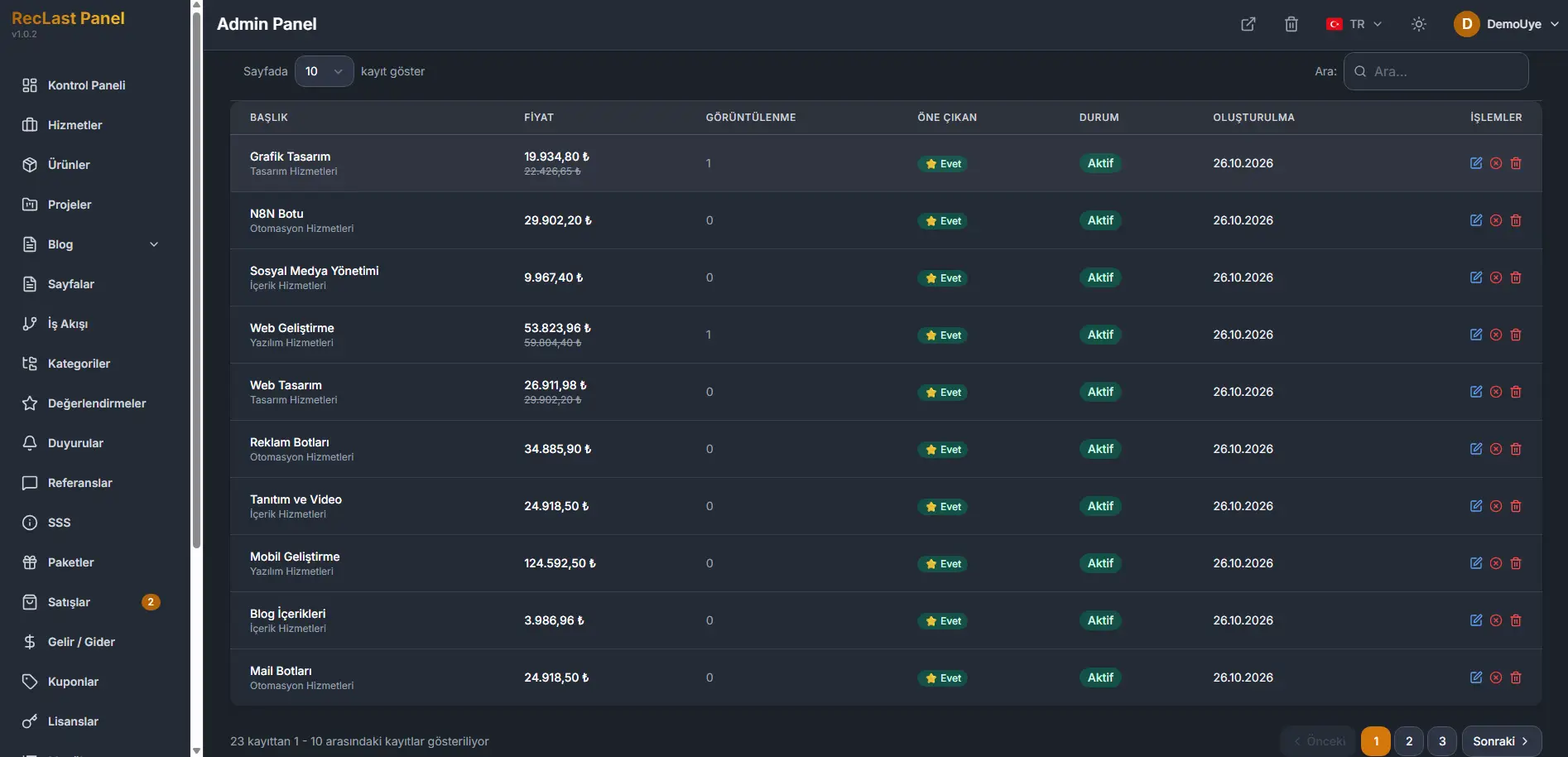
Each row shows:
- Package name.
- Original price. The total you enter for what the package contains.
- Package price. The price visitors see.
- Discount. The percent the panel calculates from those two prices.
- Featured. A star when the package is marked featured.
- Status. Active when the package is in use.
- Actions. Edit opens the form. Delete removes the row.
The line under the table states which rows are on the page, out of the full count. Previous and Next move between pages. The numbers between them are the pages.
The amounts on the list follow the currency the panel is displaying. On the form, type the price in the default currency from Configuration. The labels on the form show that currency. The panel converts the entry and stores every price in USD, so the catalog stays on one base.
Create and edit
New package opens an empty form. Edit on a row opens the same form with that package filled in. The screen title for a new record is New package, and the line under it is Create a new package.
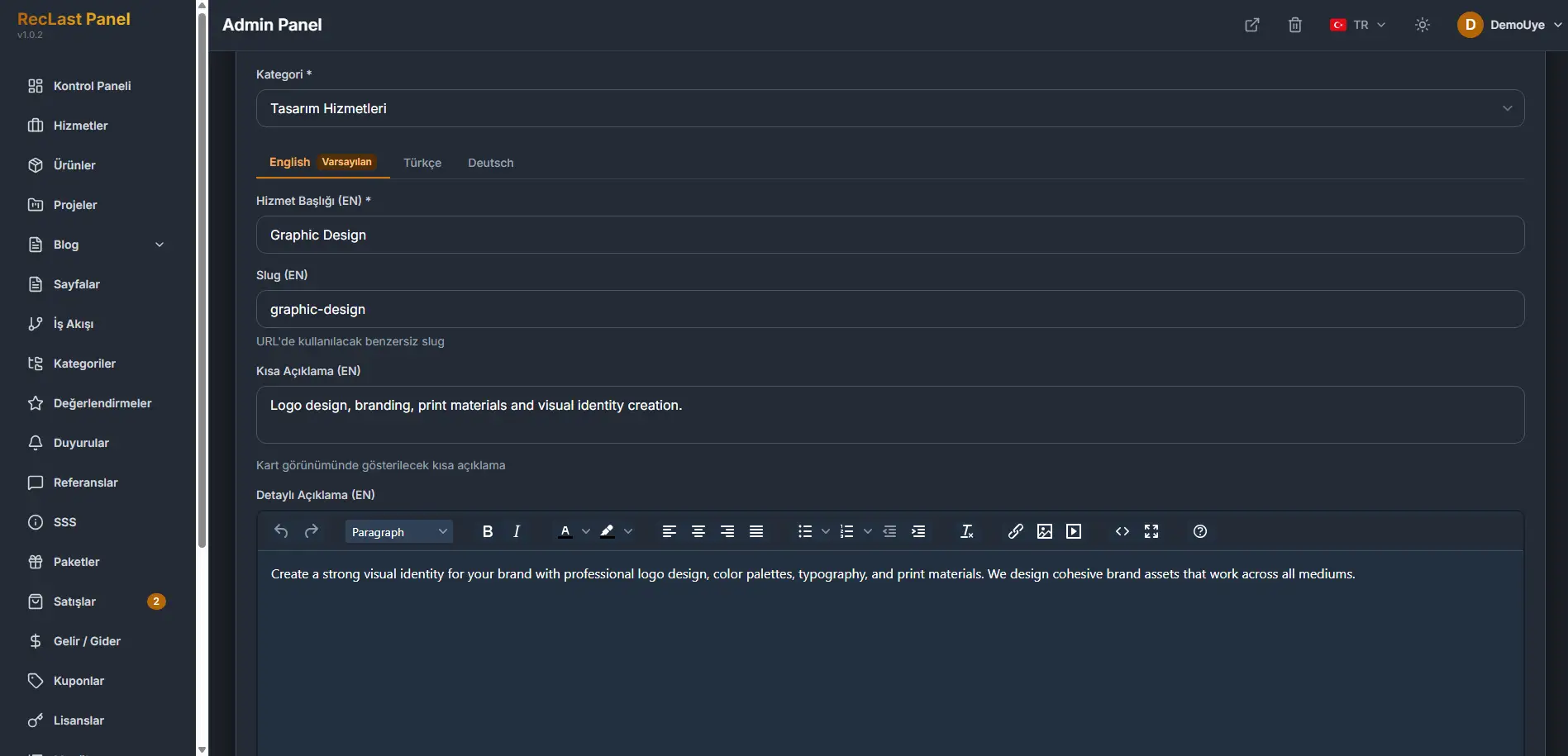
The screenshot is the top of the shared form. The fields below are the package ones.
Basic information
The language tabs come from Languages. The default language stays first, and the required fields on that tab have to be filled. This site currently has three languages, and English is the default, so English is the tab in front. Editing shows which language you are filling. Package name, slug, short description, and detailed description belong to that language.
Package name is required.
Slug is filled in for you. Edit it when the generated segment is not the one you want.
Short description is the line shown on the card.
Detailed description is the longer text, written in the editor on the form.
Featured image is one image for the package. Click the area, or drag a file onto it. Choose from gallery uses an image that is already stored. The limit is 10 MB.
Icon is a Lucide icon name. The placeholder uses names such as package, shopping-bag, and gift.
Tags. Type a tag and press Enter or comma.
Pricing
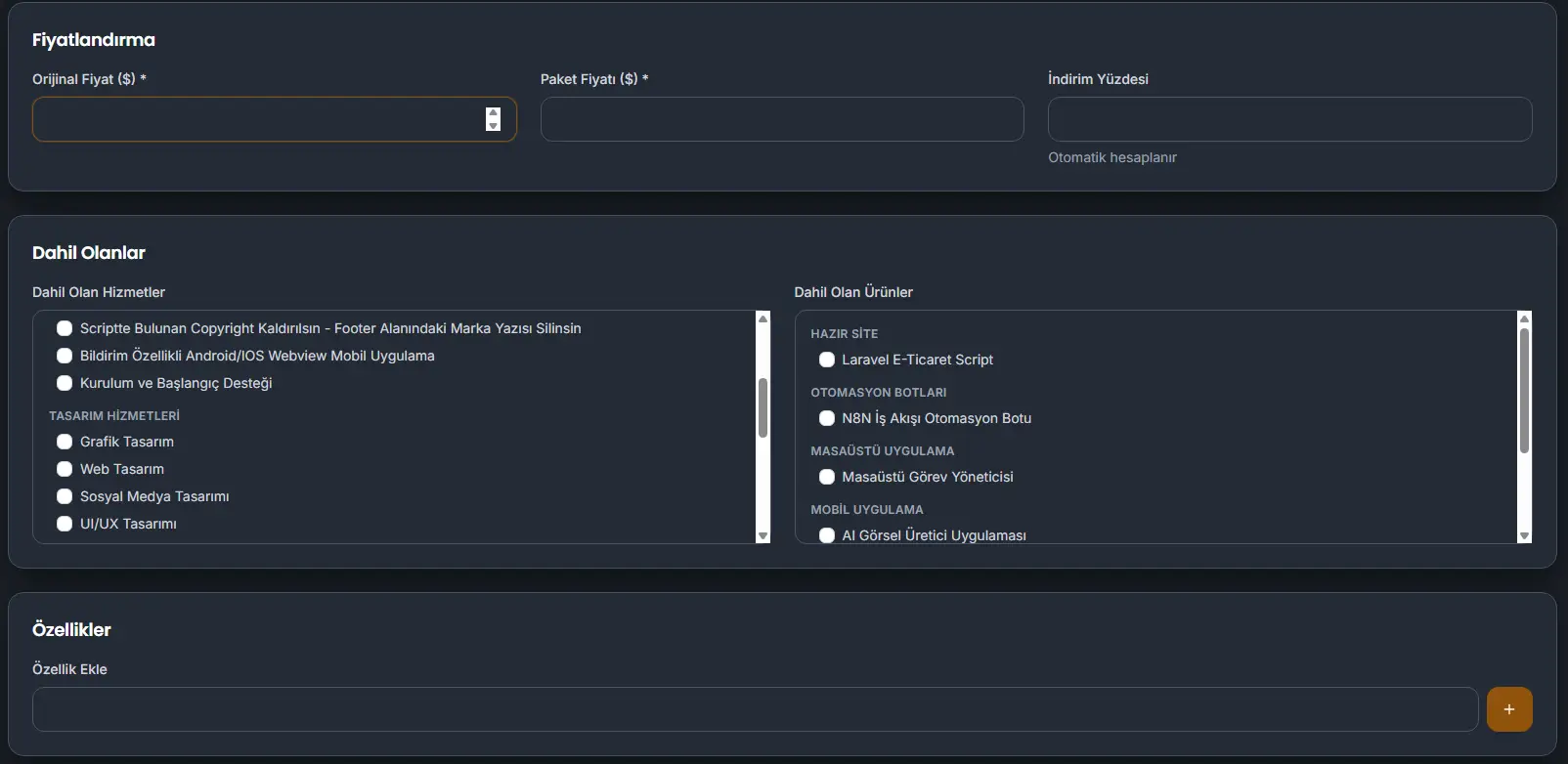
Original price is required. You can enter the total of the services and products in the package.
Package price is required. This is the price that is shown.
Discount percent is calculated. You do not type it. The line under the field says it is calculated automatically.
Type both amounts in the default currency from Configuration.
Included
Included services and Included products are the package. Each list is grouped by category. Select the ones that belong in this package. The names in the screenshot are services and products already stored in that panel.
Features
Add feature inserts a feature of the package.
Settings
Purchase type is required. The choice on this form is Buy now.
Buy now is the path on this form. Payment method and Invoice method stay off while the stack is in test mode. The same note is under Configuration.
Delivery days is how long the package takes.
Order is the sequence. The form starts at 0.
Featured is the same mark the list shows with a star.
Active is the state the list shows for a package that is in use.
Cancel leaves the form without writing it. Save writes the package.