Licences
Licences are their own item in the Agency admin sidebar, under Licences. The screen title is Licences, and the line under it is Manage product licences.
This screen is the licence you issue for a product. The panel’s own install licence is on Licence.
A sale can create a licence when the product requires one. You can also create a licence here. The list uses the same layout as Services. The form does not. The second screenshot is the licence form.
How to connect your own product through the API, and how to fit the licence check to that product, is written in the licence document included with the panel files.
The list
New licence adds a licence. Show sets how many rows the page holds. The usual count is 10. Search filters the rows.
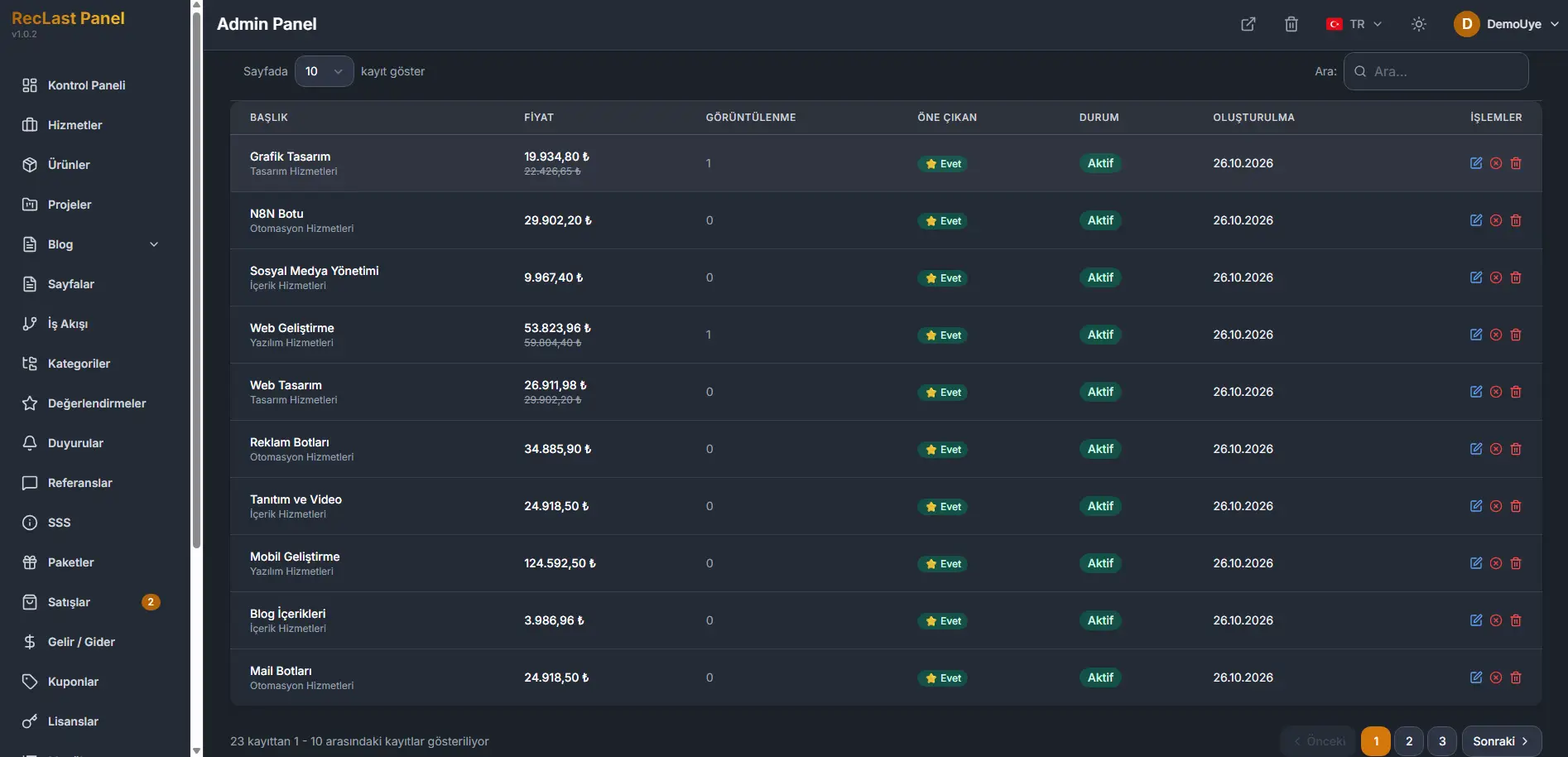
Each row shows:
- Licence key.
- Product. The product the licence belongs to.
- User. The member the licence is issued to, when one is set.
- Type. Site, user, or domain.
- Activations. How many times it has been activated, against the maximum.
- Status.
- End date.
- Actions. Edit opens the form.
When the list is empty, the table says No licence found. The line under it states that no rows are on the page. Previous and Next stay in place.
Create and edit
New licence opens an empty form. Edit on a row opens the same form with that licence filled in. The screen title for a new record is New licence, and the line under it is Create a new licence.
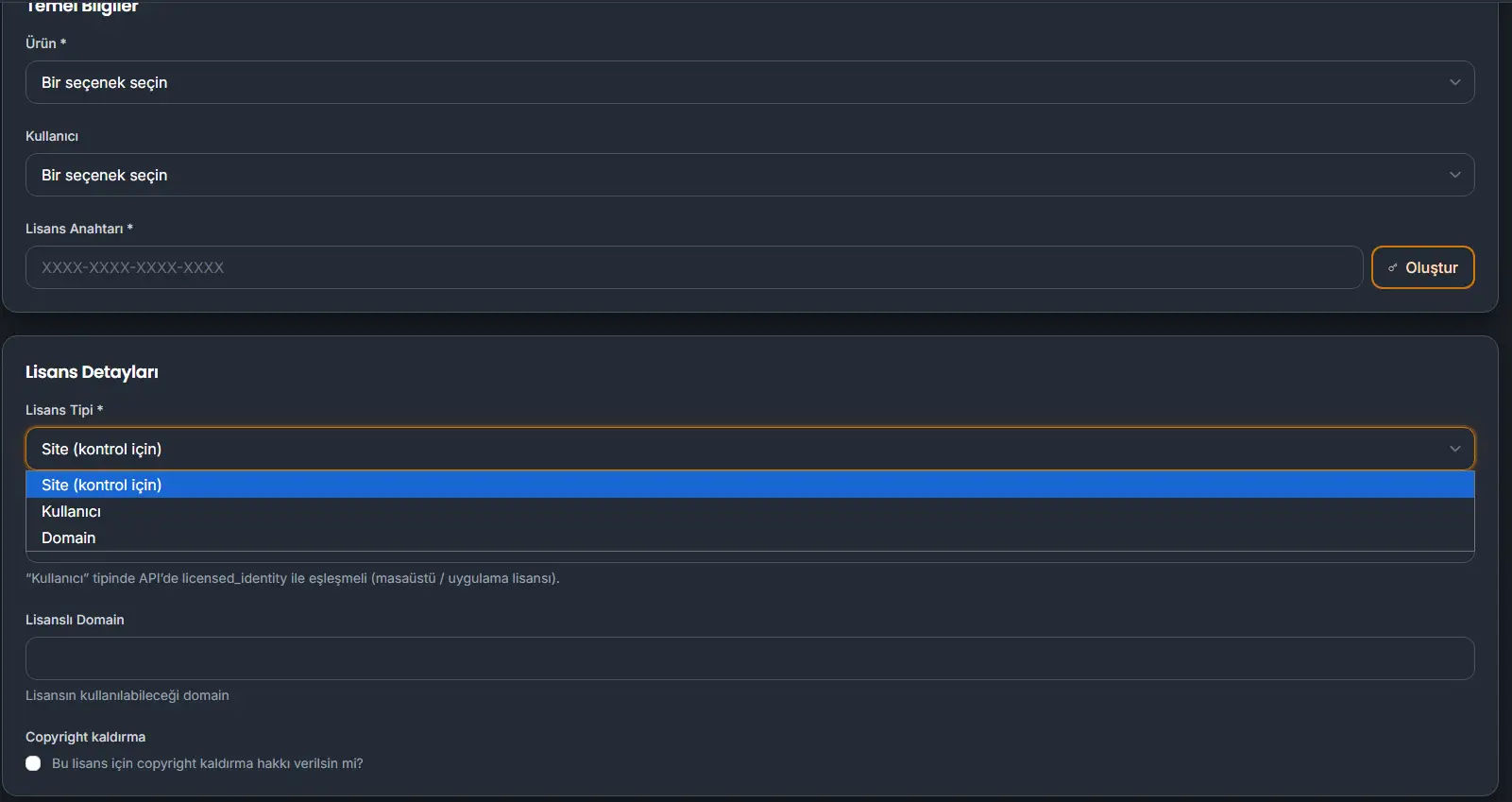
Basic information
Product is required. It is a product from Products.
User is optional.
Licence key is required. The field shows the shape XXXX-XXXX-XXXX-XXXX. Create fills a key in that shape.
Licence details
Licence type is required.
- Site (for checking). The check is for a site.
- User. A desktop or application licence. In the API it has to match
licensed_identity. - Domain. The licence is bound to a domain.
Licensed user is the identity used when the type is User.
Licensed domain is the domain the licence may be used on.
Copyright removal grants that right for this licence. Leave it off when the licence should not remove the copyright notice.
Duration and activation
Duration type is required. The choice on this form is Unlimited.
Maximum activations is how many activations the licence allows. The form opens at 1.
Status
Status is required. Active is the state for a licence that is in use.
Cancel leaves the form without writing it. Save writes the licence.