Finance
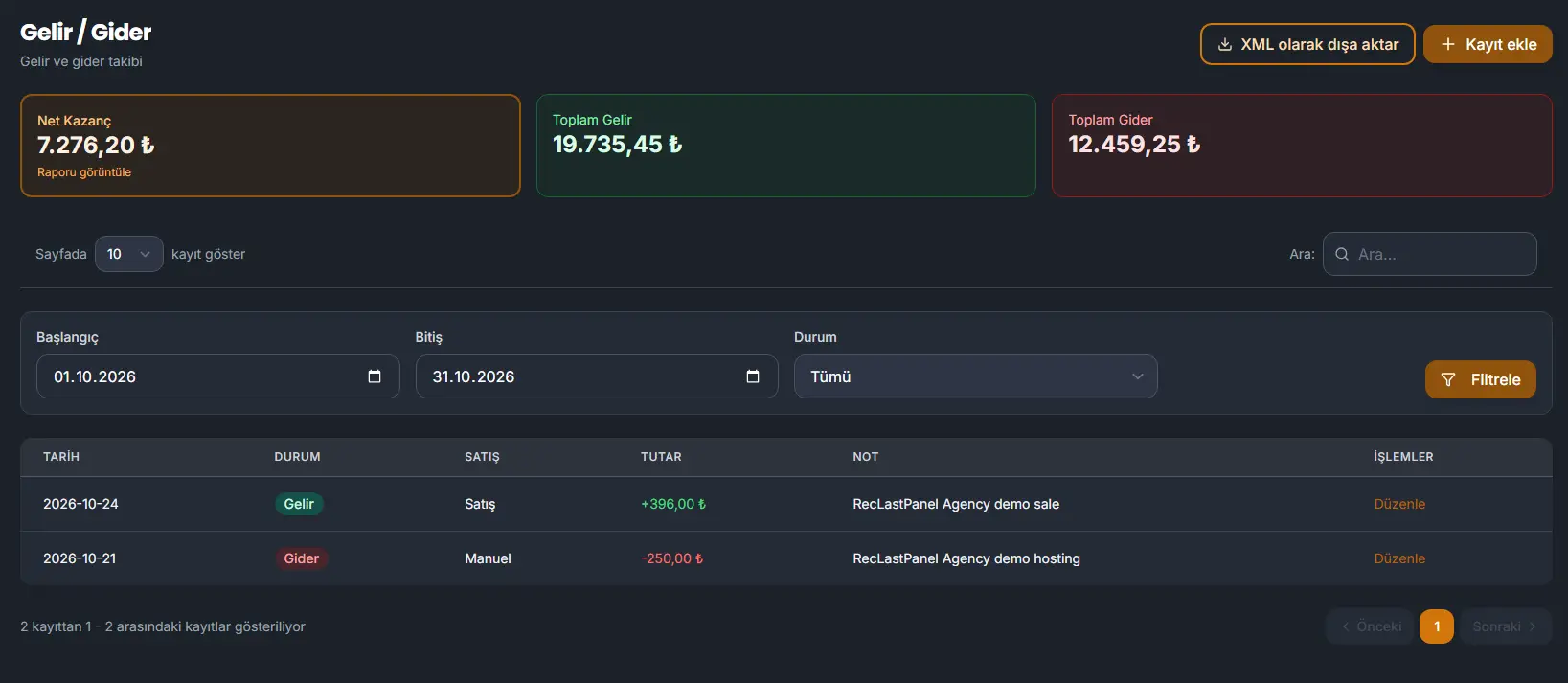
Income and expenses are their own item in the Agency admin sidebar, under Income / Expense. The screen title is Income / Expense, and the line under it is Income and expense tracking.
A sale on the site is added here on its own once payment is in live use. A manual sale is added here on its own as well. You do not type those. Use Add record for income or an expense that is not a sale.
The totals
Three figures sit above the list. They follow the currency the panel is displaying.
- Net earnings. Total income minus total expense. View report opens the report.
- Total income.
- Total expense.
Export as XML downloads the list as XML. Add record opens the window for a record you type.
The list
Show sets how many rows the page holds. The usual count is 10. Search filters the rows.
Start and End set the period. Status can be left on All. Filter applies that choice.
Each row shows:
- Date.
- Status. Income or Expense.
- Sale. Sale when the row came from a sale. Manual when you typed it.
- Amount. Income is shown as an amount added. Expense is shown as an amount taken out. The figure uses the currency the panel is displaying.
- Note.
- Actions. Edit opens the same window with that record filled in.
The line under the table states which rows are on the page, out of the full count. Previous and Next move between pages. The numbers between them are the pages.
Add a record
Add record opens a window over the list. It is not a separate page.
Income / Expense chooses the side. The window can open on Income.
Amount is typed in the default currency from Configuration. The label shows that currency. The panel converts the entry and stores it in USD, the same way a product price is stored.
Date opens on the current day. Click the field, or the calendar icon, to choose another day.
Note is optional.
Cancel closes the window without writing the record. Save writes it.